
LegalPunkt Agentic Workspace: The Tabular Research (Public Preview)
The core purpose of Tabular Research is to empower users to compare multiple massive contracts at once and extract all needed, necessary, and required information in a single, structured view. This document details how to leverage your automated analytical workspace, where you control the extraction rules, import high-volume document pools, and verify extracted variables across complex contract reviews using a highly customizable, dynamic spreadsheet matrix.


Core Workflow & Philosophy
Unlike legacy legal extraction tools that restrict you to static, pre-determined extraction sets, LegalPunkt operates on a user-driven, empty-state-first model built to handle massive scale.
[Create Workspace / Workbook] ➔ [Upload Custom Contracts] ➔ [Configure AI Columns] ➔ [Run Extraction Pipeline] ➔ [Verify in 3-Panel View]
This ensures complete flexibility:
- Compare Massive Contracts at Once: Seamlessly ingest and compare multiple large-scale agreements simultaneously in a side-by-side matrix, eliminating the need to manually toggle between files or copy-paste terms.
- Get Needed & Required Info: Define exactly which variables and clauses are required. The AI pipeline will search, extract, and structure all necessary parameters according to your precise prompt instructions.
- Workbook Agility: Jumpstart audits by applying pre-configured templates from the organization's library, or publish your custom-built workspace schemas as standard templates for other teams.
- Three-Panel Verification: A unified screen connects the file list, structured extractions, and the original document source in real-time, removing the friction from legal proofreading.
Setting Up Your Audit Workspace
Starting from Scratch (Custom Session)
- From the Tabular Workspaces dashboard, click the blue New Audit Workspace button in the top-right corner.
- Provide a clear Session Name (e.g., Q2 Customer NDA Review) and outline your specific review goals in the Description field.
- Click Create Session. This instantiates a clean, empty workspace ready to receive your custom documents and extraction columns.
Starting with Workbook Templates
If you have a recurring transaction type (e.g., due diligence, vendor NDAs, or commercial leases), you can instantiate a workspace using a standard Workbook Template:
- Click Browse Templates to open the standard library.
- Choose from verified templates, for example:
- Due Diligence Audit (M&A): Focuses on limitation of liability caps, change of control provisions, governing jurisdiction, and indemnity caps.
- NDA Review (Confidentiality): Evaluates survival terms, return of information requirements, and trade secret exclusions.
- Commercial Lease Audit: Extracts basic monthly rental rates, indexation, early termination options, and restoration liabilities.
- Pinning/Saving Templates: Click the Heart (Save) icon next to any template to pin it to the top of your organizational catalog for fast retrieval.
- Click Activate Workbook to spin up a new session pre-configured with all the target attributes, prompts, and column definitions of that template.
Designing Your Spreadsheet Matrix
Once inside a workspace, you populate your structured schema.
Step 1: Uploading Documents
- If your workspace is empty, click the Add Documents button on the toolbar.
- Upload your target PDF or Word agreements. Because LegalPunkt doesn't auto-run blind processes without your consent, files initially register as "loaded" and wait for your command.
Step 2: Adding Columns (AI Extraction Parameters)
To add a structured data point to track across all uploaded files:
- Click the Add Column button in the grid toolbar.
- Fill out the inline configuration card:
- Column Label: Enter the header name (e.g., Indemnification Cap, Governing Law).
- Data Format: Select how the data should be parsed (Text, Amount, Date, or Boolean).
- AI Prompt Instruction: Write a precise instruction for the LLM (e.g., "Identify the maximum aggregate liability limit under the Indemnification clauses. If there is no cap, return 'No cap' or 'Unlimited'.").
- Pro Tip: Use the Generate AI Instruction link. The LegalPunkt agent will automatically construct an optimized extraction prompt based on your column label.
- Click Save Column. This adds a new column to your matrix.
Step 3: Running the Pipeline
- Once files are loaded and your target columns are set, click the Run All button in the upper right.
- The LegalPunkt processing pipeline executes sequentially: running OCR on PDF structures, segmenting legal paragraphs, matching your prompt rules, and populating your table cells in real-time.
The Three-Panel Unified Review Layout
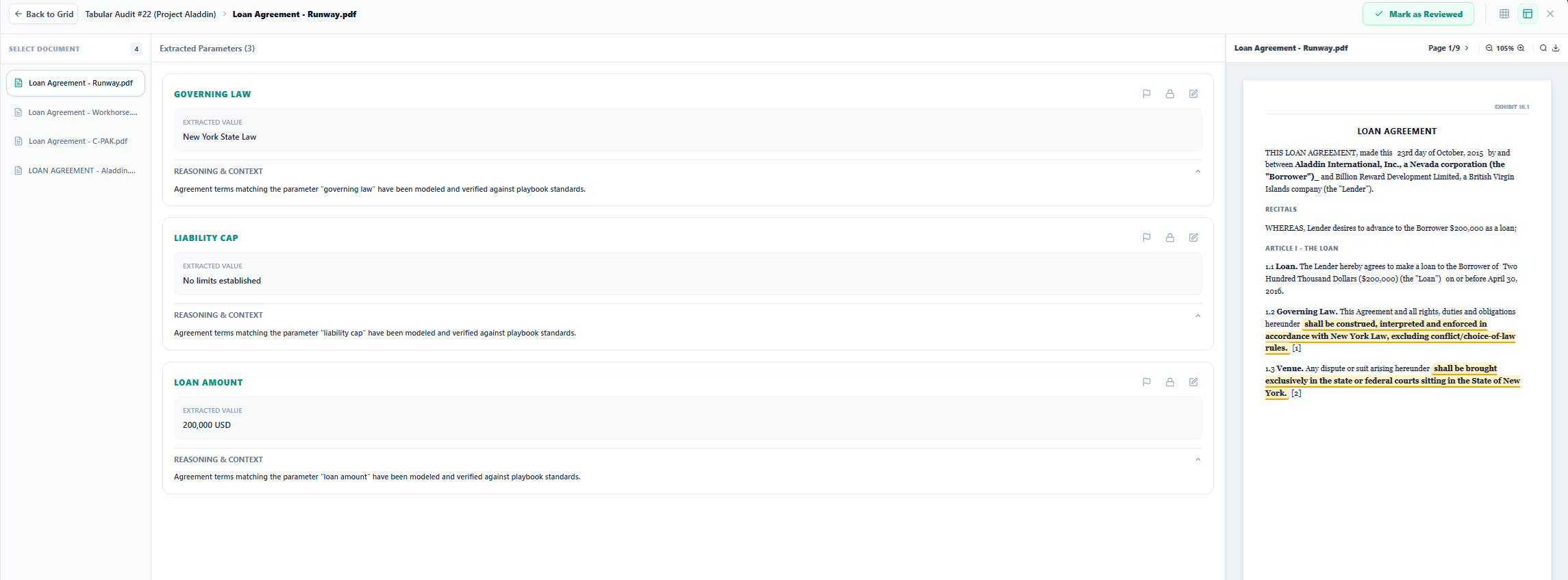
Double-clicking any document row or clicking a document's blue hyperlink opens the interactive Split Review Interface. This workspace is divided into three functional vertical panels designed for seamless validation.
Panel 1: Document Navigator (Left)
This panel displays the list of all files currently active in this workspace, along with their review status. Click any document name to instantly switch focus. The middle parameter card and the right PDF viewer update dynamically without needing to close or reload the interface.
Panel 2: Parameter Review & Extraction Details (Middle)
This card shows every AI-extracted value corresponding to your columns, complete with confidence scores and agent reasoning.
For each parameter, you have access to three vital human-in-the-loop interactive controls:
- Red Flag Compliance Risk (![][image1]-mode): Click the Flag icon to mark an extracted parameter as high-risk or out of compliance. This turns the entire parameter block amber, serving as a visual alarm for lead legal counsels reviewing the transaction.
- Lock Verification State: Click the Lock icon to lock the field. This protects your reviewed values. If other members of your team rerun the bulk AI extraction pipeline, locked parameters will not be overwritten by the agent.
- Manual Field Override: If the AI has captured a clause accurately but you want to condense, rephrase, or correct the wording, click the Edit icon. You can type directly in the field. Clicking Save updates both this card and the main spreadsheet view instantly.
Below each value, expand the Reasoning & Context accordion to read the verbatim text segments and rationale used by the AI to retrieve the data point.
Panel 3: Interactive Document Highlight Viewer (Right)
This is a live preview of the original source document. When you select a parameter in Panel 2 (e.g., clicking on Governing Law), Panel 3 immediately scrolls to the exact page and paragraph containing the relevant terms and highlights the source text in warm amber.
- PDF Controls: Zoom in/out, download the original file, or jump directly through search matches using the PDF toolbar.
- Sign-Off / Review Completion: Once all parameters on a document are verified, click the Mark as Reviewed button. This adds a green Reviewed ✓ status badge to the document across both the Split View and the main Grid View.
Project-Level Collaboration
To facilitate efficient multi-user review and align on high-priority compliance risks:
- Whole Project Access: Note that access to Tabular Research cannot be shared as an isolated workspace. Sharing is managed entirely at the project level—it is a whole project or nothing at all.
- Inviting Members: To collaborate on your spreadsheet matrix, you must share the parent LegalProject via the projects dashboard or sidebar. Enter the email address of your co-counsels, senior partners, or auditors to invite them to the project.
- Simultaneous Review: Once invited, team members can access the project workspace, view the live spreadsheet matrix simultaneously, coordinate review duties, and verify critical extraction parameters in real-time.