
Creating and Managing Projects

Defining the Project Details
Once the creation form opens, you will configure the foundational parameters that shape how the AI agent understands and prioritizes the matter. Each field serves a specific purpose in establishing the operational scope of your project.
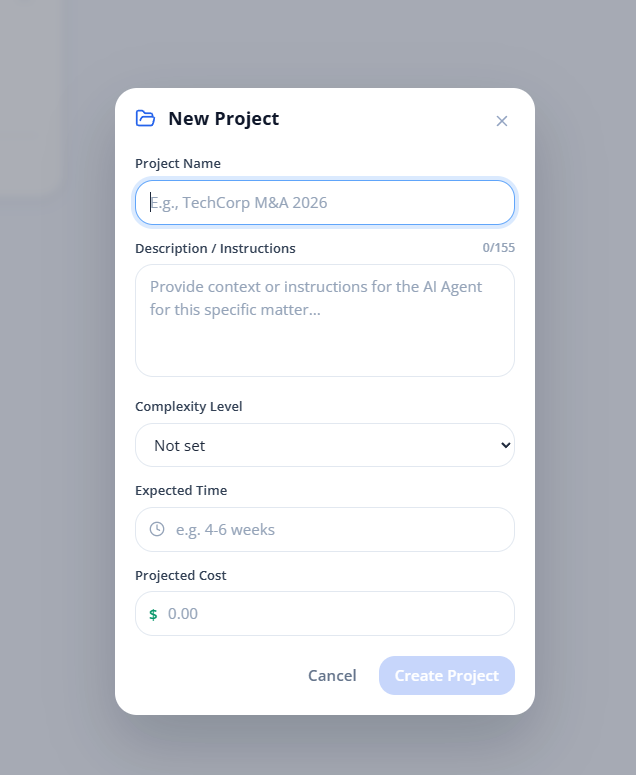
Project Name — Assign a clear, identifiable title to the matter. This name will appear across the platform — in the sidebar, on dashboards, in shared views, and within billing records. Best practice is to use a naming convention that your team can recognize at a glance, such as combining the client name with a brief matter descriptor.
Description / Instructions — This is where you provide context or instructions for the AI agent. Think of this field as your initial briefing note. The more precise the instructions, the more tailored the agent's responses will be. For example, you might note the governing jurisdiction, the nature of the dispute, the commercial objective, or any specific areas of focus the agent should prioritize during analysis and drafting.
Complexity Level — Classify the matter as Low, Medium, or High complexity. This assessment informs the dashboard's resource projections and helps the AI agent calibrate the depth of its analysis. A routine contract renewal would typically warrant a Low designation, whereas multi-jurisdictional litigation or a complex M&A transaction would justify a High rating.
Expected Time — Provide an estimated timeframe for the matter's lifecycle, such as 4–6 weeks or 3 months. This estimate feeds into the project timeline and phase planning on the dashboard, giving your team a shared reference point for pacing and milestone tracking.
Projected Cost — Enter the anticipated budget for the engagement in USD. This figure anchors the billing tab's cost tracking, enabling you to monitor actual expenditure against your initial estimate as the matter progresses.
With these details in place, your project is ready. The system will generate the workspace, and you can immediately begin uploading context documents, configuring playbooks, and engaging the AI agent.
Managing Your Projects
As matters develop, you will inevitably need to adjust project details, bring in additional counsel, or wind down completed engagements. LegalPunkt centralizes all of these administrative actions behind a single access point.
To manage any project, locate the project card within the Projects view and click the three horizontal dots icon. This opens a menu with the following options.
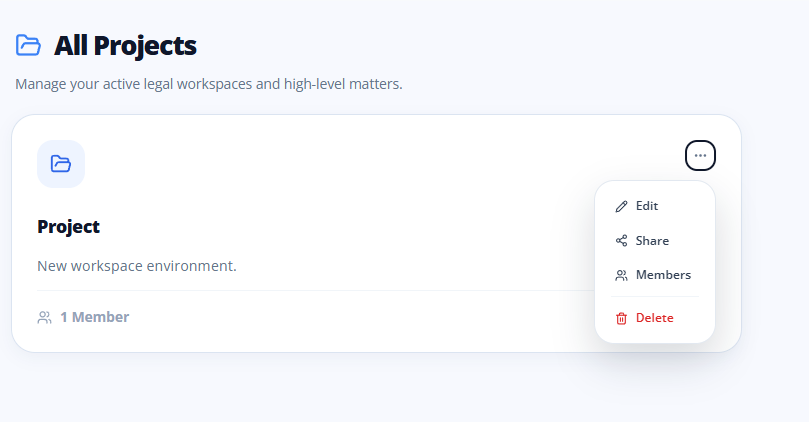
Edit
Select Edit to modify the core identifiers of a project — specifically, the Project Name and the Description / Instructions. This is particularly useful when the scope of a matter shifts mid-engagement, when you onboard new team members who need updated briefing context, or when you want to refine the AI agent's instructions based on how the matter has developed. All other project parameters, such as complexity and cost projections, are managed through the project dashboard.
Share
Collaboration is fundamental to legal practice. Select Share to invite team members or external counsel by email. Simply enter the recipient's email address and send the invitation. The invited party will receive a notification with a direct link to the project workspace, granting them immediate access to the matter's full context, documents, and tooling.
When sharing, you can assign one of the following supported roles:
- Owner: Can do everything.
- Editor: Almost like Owner, but cannot delete the project.
- Viewer: Read-only access.
This capability supports seamless co-counseling arrangements, allowing geographically dispersed teams to operate within a unified environment without duplicating files or coordinating access through external channels.
WARNING
Users can access the project only if they have purchased Legalpunkt beforehand.
Members
The Members view provides a complete roster of everyone who currently has access to the project. This is your administrative control panel for team composition. From here, the project administrator can review who has been granted access and, when necessary, remove individuals from the project — for example, when external counsel's engagement concludes or when team assignments change. Removing a member revokes their access to the project workspace immediately.
Delete
When a matter has concluded and retention is no longer required, or when a project was created in error, select Delete to permanently remove the project and its associated workspace. This action is reserved exclusively for the project administrator and cannot be reversed. All documents, context, conversation history, and billing records within the project will be permanently erased.
WARNING
Deleting a project is irreversible. Ensure that all necessary documents have been exported and that billing records have been finalized before proceeding.