
LegalPunkt Agentic Workspace: The Artefacts
This document details how to navigate the central depository for all legal materials, correspondence, and evidence generated or collected during your active projects.
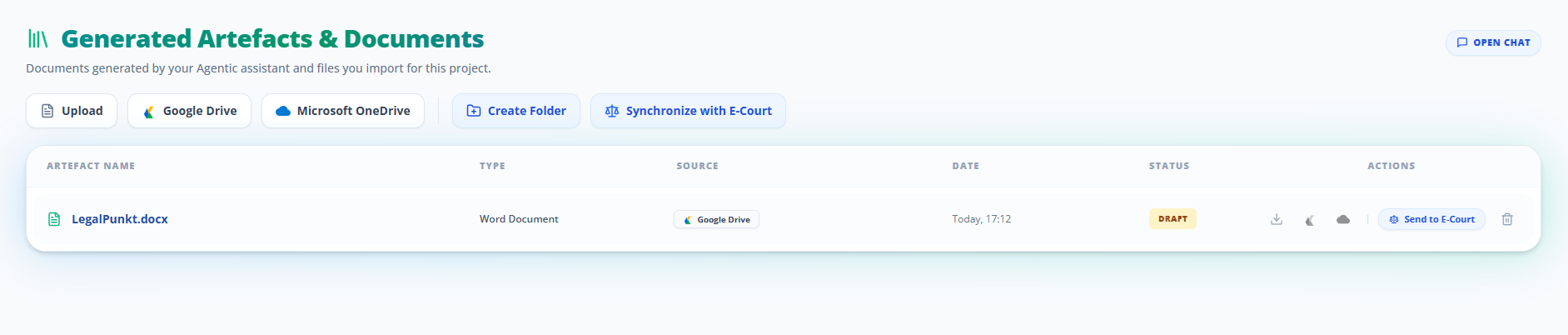
Introduction to the Artefacts Tab
In the day-to-day management of complex client matters, a massive volume of documentation naturally accumulates. An "artefact" in the LegalPunkt ecosystem represents the digital footprint of this file history—encompassing any document drafted during your collaborative sessions with the AI agent (including text files, reports, and PowerPoint presentations) or uploaded directly by your team. Whether you are drafting a detailed litigation strategy memo, compiling evidentiary exhibits, generating a case presentation (.pptx), or reviewing court briefs, the Artefacts tab serves as your secure, unified vault.
Unlike passive cloud storage systems, this workspace is deeply integrated with jurisdictional workflows. It is designed to house non-transactional materials, while private transactional contracts are handled separately in the Contracts tab. This specialized environment allows you to organize files, track their maturity from draft state to final approval, and sync them directly with public court networks.
Ingestion Toolbar & Top Controls
When initializing a new project or case file, establishing a comprehensive fact base is essential. The toolbar at the top of the Artefacts tab is designed to streamline this document ingestion process:
- Upload Button: Imports documents manually from local drives directly into the active project directory.
- Google Drive & Microsoft OneDrive Integration: Connects your workspace to cloud repositories (via the green HardDrive and blue Cloud icons), allowing you to import documents without local downloading.
- Synchronize with E-Court: By linking an active case ID and clicking the scale icon, the system queries official electronic court registries, automatically fetching recent filings and updates to keep your file current.
- Custom Folders: The "More Actions" dropdown allows you to create custom subfolders, enabling you to structure your documents logically into pleadings, correspondence, or evidentiary materials.
The Native Document Editor and Cloud Collaboration
Selecting a document in your folder hierarchy opens an inline rich text editor. This allows counsel to perform quick reviews, refine language, and adjust formatting without leaving the platform.
Inline Editing Tools
The formatting toolbar provides immediate control over the presentation of your drafts:
- Typography Controls: Apply bold, italic, or underline styling to highlight specific legal citations or emphasize key arguments.
- Paragraph Alignment: Align text (left, center, or right) to comply with specific court layout guidelines.
- Evidentiary Lists: Use bulleted lists to organize timelines, factual assertions, or supporting exhibits.
Continuous Editing in Word and Google Docs
For extensive drafting, styling, or collaborating with counterparties, the native editor provides seamless launch buttons in the header toolbar:
- Edit in Word Button: Launches the document in Microsoft Word Online, allowing you to use advanced styling, track changes, or apply firm-specific templates.
- Edit in Google Docs Button: Opens the document directly in Google Docs, facilitating real-time co-authoring and commenting with colleagues.
This integration ensures that you can open these files in Word or Google Docs, continue your drafting work in your preferred application, and have all changes automatically synchronized back to your LegalPunkt project without version control friction.
Standard Workflow: From Draft to Court Submission
To understand how a document moves from initial intake to an official court registry, follow this standard sequence:
- Draft or Upload: Instruct the AI agent to generate a motion based on your case files, generate a PowerPoint presentation (.pptx) summarizing key arguments, or upload an existing file.
- Edit and Style: Click the document row to open the editor, using the formatting tools to adjust the structure.
- Collaborate Externally: Click the Edit in Word or Edit in Google Docs button to open the document in your preferred suite, where you and your team can continue the work.
- Review and Approve: Once the document is finalized, click the green Approve button in the header. This changes the status to "Approved" and locks the file to prevent accidental changes.
- Official Filing: Return to the directory table, locate the approved document, and click the Send to ЄСУД button to securely transmit the file to the electronic court system.