
LegalPunkt Settings: Tools
This document explains how to connect, manage, and use external data integrations that allow your AI Agent to access documents, emails, and files from the platforms your organization already uses every day.
What Are Tools?
Tools are secure, authenticated connections between LegalPunkt and the external software platforms where your legal documents, communications, and work products live. By connecting a tool, you grant your AI Agent the ability to read, retrieve, and analyze files directly from that platform — without requiring you to manually download and re-upload every document.
In practical terms, tools solve a fundamental problem in legal operations: your files are scattered across multiple platforms. Contracts might live in Google Drive, corporate policies might be stored on SharePoint, correspondence might flow through Gmail or Outlook, and court filings might exist in specialized registries like Єсуд. Without tools, you would need to manually download each file and upload it into LegalPunkt's Context tab before the agent could work with it. With tools connected, the agent can pull files directly from the source — saving time, reducing version confusion, and keeping your workflow seamless.
Tools apply globally to your LegalPunkt environment. Once a tool is connected in Settings, the integration is available across all your projects. You can then use the connected platform as a source when uploading files to any project's Context, Artefacts, or Contracts tabs.
Supported Tools
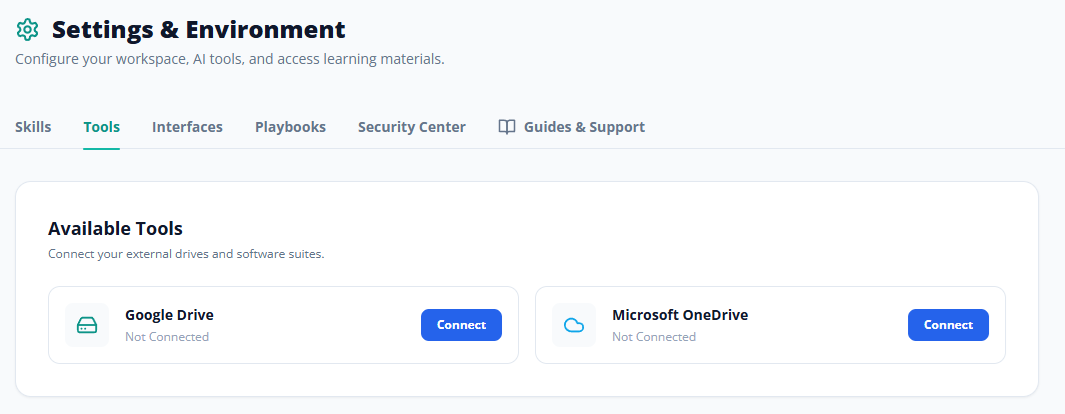
The following tools are currently available in the LegalPunkt Tools tab:
Google Drive
- Icon: Green hard-drive icon
- What it does: Connects your Google Drive cloud storage to LegalPunkt. Once linked, you can browse and select files or entire folders from your Drive directly within LegalPunkt's upload workflows.
- Supported file types: PDFs, DOCX, XLSX, Google Docs, Google Sheets, and other standard document formats.
- Use case: Store your master contract templates, client correspondence archives, and internal policy documents in Google Drive and let the agent access them directly without manual downloads.
- Authentication: Uses Google OAuth 2.0. You will be redirected to Google's login page to authorize LegalPunkt's access to your Drive files.
SharePoint
- Icon: Blue cloud icon
- What it does: Integrates LegalPunkt with your organization's Microsoft SharePoint document libraries. This is particularly valuable for enterprise users who maintain centralized repositories of corporate policies, approved templates, and compliance documentation.
- Use case: Pull your organization's standard NDA template directly from the SharePoint library into a project's Context tab, or ask the agent to compare a new vendor contract against the approved template stored in SharePoint.
- Authentication: Uses Microsoft Azure AD authentication with OAuth 2.0. Your IT administrator may need to pre-approve the LegalPunkt application in your Azure tenant.
How to Connect a Tool
Follow these steps to establish a new tool connection:
- Navigate to Settings by clicking the button at the bottom of the left sidebar.
- Click the Tools tab in the horizontal tab bar.
- Locate the tool you want to connect in the grid of available integrations.
- Click the Connect button (blue) on the right side of the tool card.
- A secure authentication window will open. This is typically a pop-up or redirect to the tool's login page (e.g., Google's OAuth consent screen or Microsoft's Azure AD login).
- Enter your credentials for that specific service and authorize LegalPunkt to access your files, emails, or documents.
- Once authentication is successful, you will be redirected back to LegalPunkt. The tool card's status indicator will change from "Not Connected" (grey) to "Connected" (green).
- The Connect button will change to a Disconnect button, confirming the integration is live.
The tool is now active. You can immediately use it as a source when uploading files to any project's Context, Artefacts, or Contracts tabs.
How to Disconnect a Tool
If you need to revoke the agent's access to a platform — for example, when changing vendors, rotating credentials, or simply no longer needing a particular integration:
- Navigate to Settings and click the Tools tab.
- Locate the active tool you want to remove. It will display "Connected" in green text.
- Hover over the Disconnect button. It will change from grey to red to indicate a destructive action.
- Click Disconnect.
- Confirm your choice if a verification prompt appears.
- The agent will immediately lose all access to that data source. The status will revert to "Not Connected" (grey) and the button will change back to "Connect" (blue).
Disconnecting a tool does not delete any files that have already been uploaded to your project's Context tab. It only revokes the agent's ability to fetch new files from that platform going forward.
Best Practices for Tool Management
- Connect early, use throughout. Set up your tool connections as one of the first things you do when configuring LegalPunkt. Once connected, the integration is available across all projects, saving you from manual file transfers in every future matter.
- Use the right tool for the right source. If your firm standardizes on Microsoft 365, connect SharePoint and Outlook. If you use Google Workspace, connect Google Drive and Gmail. There is no need to connect platforms your organization does not use.
- Review connections periodically. Check your active tool connections quarterly. Disconnect any tools you no longer use, and ensure that credentials have not expired or been rotated.
- Coordinate with IT for enterprise tools. Some tools, particularly SharePoint and Outlook, may require your IT administrator to pre-approve LegalPunkt in your organization's Azure AD tenant. Coordinate with your IT team before attempting to connect these integrations.