
LegalSearch: Semantic Search & Parameters
LegalSearch is designed to streamline how legal professionals locate precedents, rulings, and statutory authorities. By combining conceptual natural language queries with robust procedural filtering, the platform delivers highly relevant results from active registries in seconds.
This guide details how to navigate the search console, configure search modes, filter results, and act on the decisions you find.
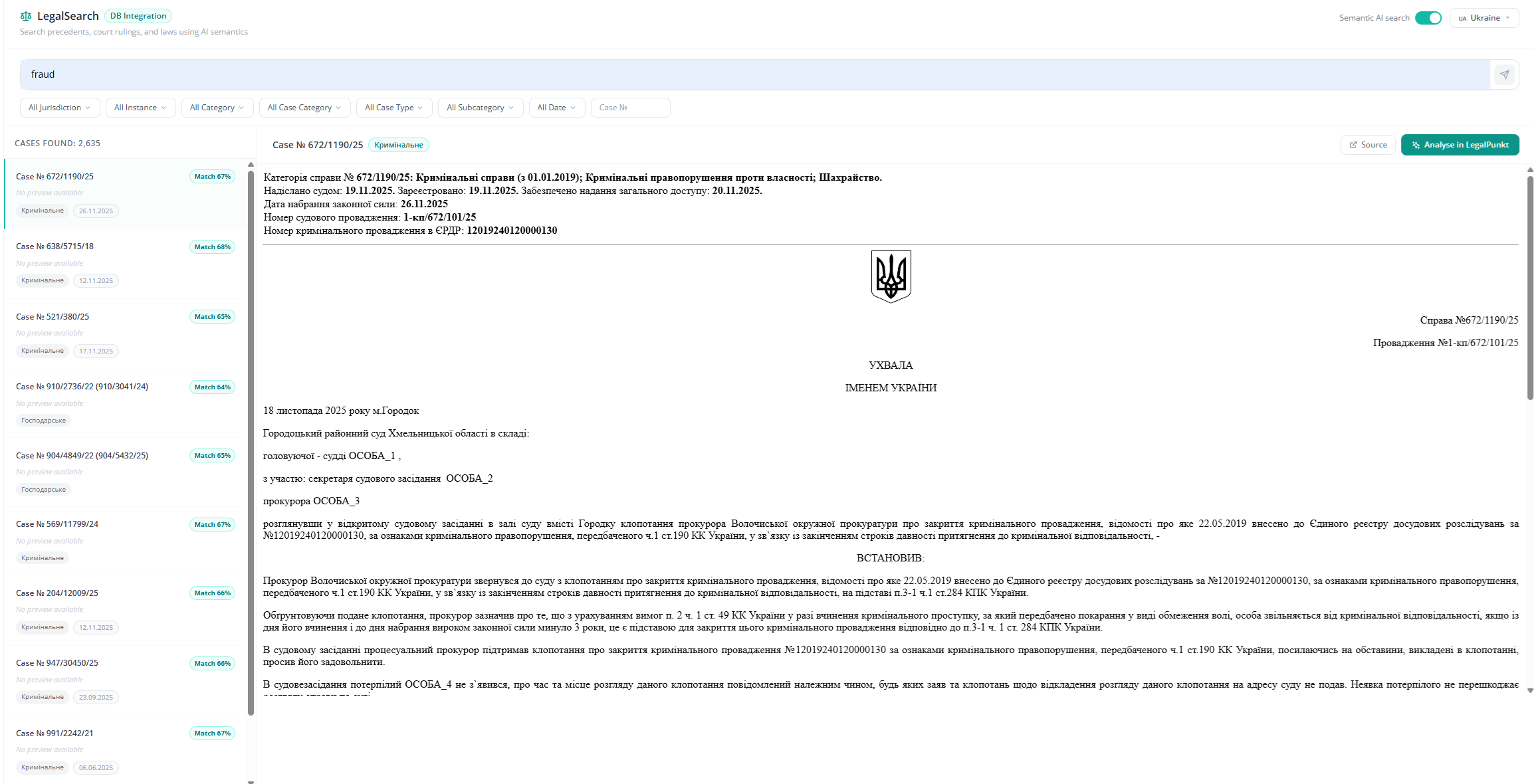
Search Modes: Semantic AI vs. Keyword Search
To accommodate different research strategies, the search console features a toggle in the top action bar to switch between two search modes:
Semantic AI Search (Toggle ON)
In this mode, the search engine processes natural, descriptive language. Instead of guessing specific legal articles or Boolean modifiers, you can describe a real-world dispute, factual pattern, or business problem in plain text (e.g., "tenant default on commercial lease obligations during reconstruction").
The system maps the concepts in your query to the corresponding statutory topics and judicial reasoning. Each result returned displays a green Match % Badge representing relevance:
- 95% - 100% (High Relevance): Rulings sharing near-identical factual scenarios and governing legal frameworks. These are your primary precedents.
- 80% - 94% (Medium Relevance): Decisions addressing the same core legal principles but under different factual circumstances. Highly useful for constructing persuasive arguments.
- Below 80% (Broad Reference): General cases within the same legal domain that can serve as background context.
Traditional Keyword Search (Toggle OFF)
Switch to this mode when you know the exact identifiers of the records you are looking for. It executes a precise search matching characters exactly. Use it for finding:
- Case Numbers: e.g.,
Case № 910/14234/25 - Statutory Articles: e.g.,
Art. 611 of the Civil Code - Judges: e.g.,
Judge Baranov D. O.
Decision Form
Filter by the specific type of judicial document. The options in this dropdown dynamically adapt to the selected jurisdiction:
- Ukraine Registry: Displays local civil law classifications such as Verdict (Вирок), Resolution (Постанова), Decision (Рішення), Court Order (Судовий наказ), Ruling (Ухвала), Separate Ruling (Окрема ухвала), and Separate Opinion (Окрема думка).
- Common Law Registries (US/UK): Shakes down to standard common law documentation, focusing on Judgments, Opinions, and Orders.
Working with Search Results
Once you identify relevant rulings, LegalSearch provides two key options next to each decision to integrate the findings into your active workflow:
- Analyze within Legalpunkt: Click the green Analyse in LegalPunkt button to open the ruling. This automatically opens the document details along with a prepared Pravopunkt Analytical Note. You can instantly pull this decision into the right-hand chat panel, allowing you to prompt the Chat Agent to apply the ruling directly to your current project, draft briefs, or check for contract risks.
- Inspect at the Source: Click the Source button located immediately next to the analysis button. This opens the original, official public registry page (such as the official government gazette or the court's official database) in a new browser window, letting you verify the ruling at its primary, authoritative source.