
LegalPunkt Agentic Workspace: The Legal Billing
This document details how to leverage the AI-powered financial ledger to automate the generation of expected invoices, review billable hours, and challenge opposing counsel's fees.
Introduction to the Billing Module
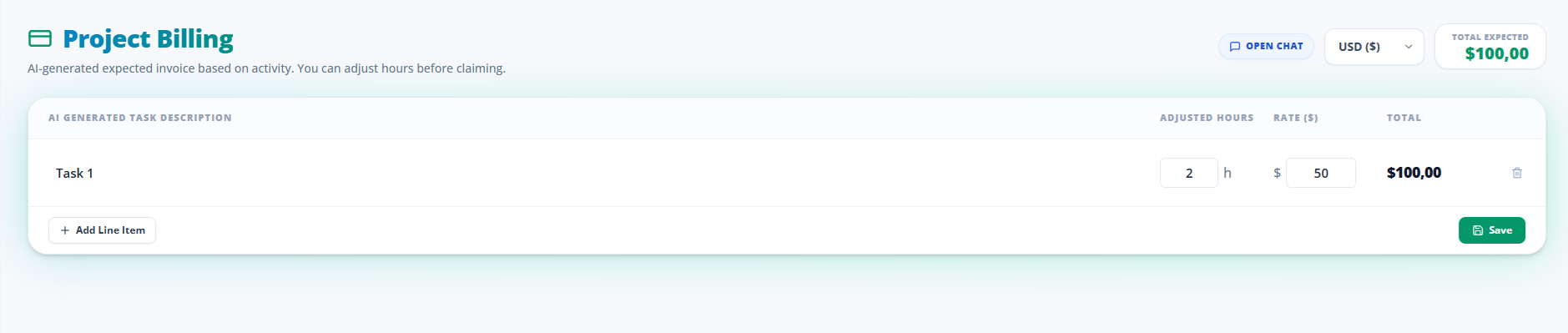
The Legal Billing is a paradigm shift in legal timekeeping. Instead of relying on attorneys to manually log hours into legacy systems in 6-minute increments, LegalPunkt operates as an AI-powered financial ledger that passively observes and automatically drafts expected invoices based on your actual project activity.
It allows legal teams to review, adjust, and approve billable hours before claiming them, drastically reducing time-leakage and administrative overhead. Furthermore, it features unique tools for scrutinizing third-party invoices.
Core Invoicing Capabilities
The Legal Billing module goes beyond basic time entry by providing deeply integrated, intelligent billing features designed for legal professionals.
Context-Driven Generation
Rather than starting from scratch, the system analyzes all activities within a specific LegalProject context. The agent scans case notes, research queries, document drafts, and communications to reconstruct a comprehensive timeline of work. The generated invoice details precisely what was done, ensuring transparency and alignment with actual efforts.
Sophisticated Logic & Best Practices for Jurists
The generation engine employs advanced reasoning designed specifically for the legal sector. It adheres to industry-standard guidelines (such as preventing problematic block-billing, utilizing clear verb-object descriptions, and categorization matching UTBMS standards). This sophisticated logic guarantees that the drafted invoices are highly professional, audit-ready, and compliant with corporate billing policies.
Flexible Creation Modes
Users are always in control of how their invoices are initiated:
- Agentic Generation: Let the AI agent synthesize the project history and construct a draft with line items, times, and descriptions.
- Manual Creation: Draft an invoice manually from scratch by adding individual line items, setting custom rates, and writing descriptions.
Live Cloud Editing (Google Drive & OneDrive)
Once exported, invoices are not static documents. LegalPunkt integrates seamlessly with Google Drive and Microsoft OneDrive, allowing you to export invoices as live spreadsheets. You can open, edit, refine, and collaborate on these files directly within Google Workspace or Microsoft 365, with all changes reflected in your cloud storage.
Approving and Claiming Invoices
Once an invoice is finalized and reviewed, users can Claim the invoice. Claiming locks the billing records, marks the items as claimed/billed within the project, and moves them to the historical archive to prevent double-billing.
Step-by-Step Guide: Generating and Managing Invoices
Follow these steps to generate, export, and claim an invoice within your project:
Step 1: Open the Project Context
Navigate to the active LegalProject that contains the work you want to bill.
Step 2: Choose Your Invoicing Method
- To generate automatically: Click the agent prompt or trigger the invoicing skill to let the AI draft the items based on the project's documents and logs.
- To create manually: If the billing ledger is empty, click the Create New Invoice button to initialize a new billing template and manually fill out the line items.
Step 3: Review and Edit in the Ledger
Verify the billing currency, rates, and hours in the active table. You can adjust the hours directly to match your preferences.
Step 4: Export for Cloud Editing
Click the Drive (Green HardDrive icon) or OneDrive (Blue Cloud icon) button to export the invoice. Open the document in Google Drive or OneDrive to make any formatting or content edits directly in the cloud.
Step 5: Claim the Invoice
Return to the Legal Billing dashboard and click Approve & Claim (Green CheckSquare icon) to finalize the ledger, lock the hours, and save the invoice under the Saved Invoices archive.