
LegalPunkt Agentic Workspace: The Context
This document details how to assemble, organize, and optimize the context materials that ground your AI agents in the factual reality of your files.
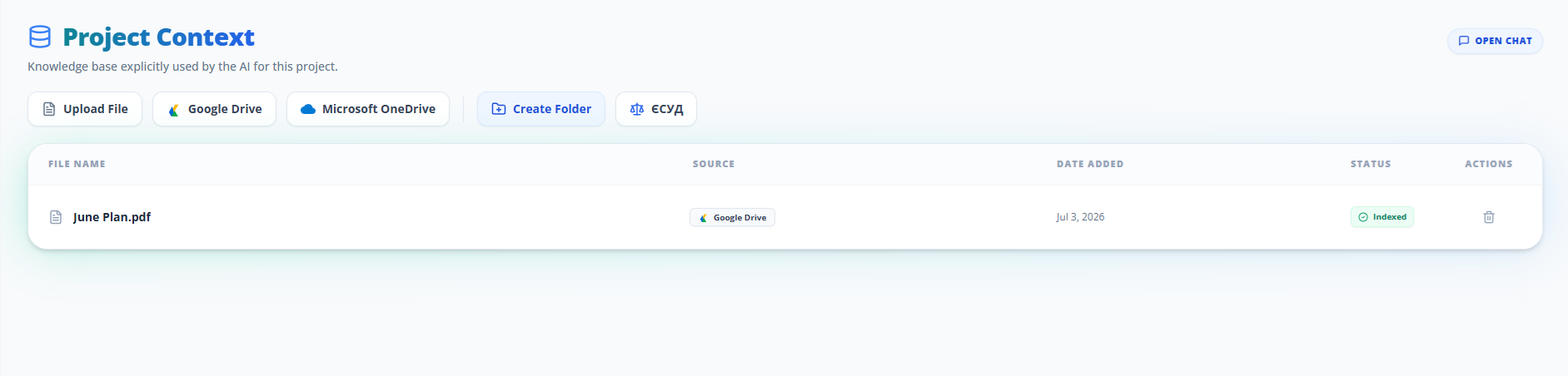
Introduction to the Context Tab
Every significant matter, from high-stakes corporate acquisitions to complex litigation, begins with a large body of unstructured documents: contracts, briefs, regulatory filings, corporate resolutions, and witness transcripts. In a traditional folder system, these documents remain static and disconnected.
In LegalPunkt, the Context tab is Omniverse, and acts as the primary repository that transforms these raw materials into active, searchable knowledge. We support virtually any file format—including Word, PDF, images, HTML, and Markdown (.md)—with absolutely no limits on uploads.
Once files are uploaded, the context is automatically processed and indexed. Because files must be indexed before they can be used, you will need to wait briefly before referencing them (the exact indexation time depends on the file size and format). Once indexing is complete, you establish the boundaries of the AI agent's reasoning, allowing it to search for hidden liabilities, summarize obscure provisions, or draft responsive motions grounded in the facts of your case.
Ingestion Toolbar & Integration Sources
To construct your project’s dossier, the ingestion toolbar at the top right of the Context tab provides direct pipelines to key document sources:
- Upload File Button: Select files directly from your local workstation. Drag-and-drop is fully supported across the entire workspace canvas to start the upload.
- Google Drive Button (Green HardDrive icon): Authenticate securely to import files or entire diligence folders directly from your cloud storage.
- OneDrive Button (Blue Cloud icon): Connect directly to your Microsoft OneDrive to pull documents, matter files, and workbooks without manual downloads.
- Additional Connectors (Dropdown Menu): Located immediately after the OneDrive button, this dropdown menu unlocks integrations with extended data sources:
- GCS (Google Cloud Storage): Import documents, archives, and unstructured data directly from your Google Cloud storage buckets.
- BigQuery: Query and ingest structured analytical datasets, logs, and tabular data into your workspace context.
- SharePoint: Connect to corporate SharePoint document libraries to pull enterprise contracts, policies, and organizational records.
- Confluence: Seamlessly ingest team spaces, knowledge base pages, and compliance wikis.
- Custom DB: Integrate proprietary or self-hosted databases. For custom database integrations, please contact us at info@agentpunkt.com so our team can set it up and optimize the connection for you.
Nested Folder Creation and Navigation
Organizing extensive discovery files or transaction documents is key to an efficient review. You can build nested hierarchies within the Context tab to keep your records ordered.
Creating a Folder
- Click the More Actions (...) button and select Create Folder.
- An inline folder creation bar will appear at the top of the table.
- Enter your directory name in the text input box ("New folder name...").
- Click the blue Create button (or press Enter) to save, or the Cancel button to discard.
Navigating the Files
- Entering folders: Click on any folder row (indicated by a blue Folder icon) to open it and view its contents.
- Breadcrumbs: As you navigate deeper, a breadcrumbs banner displays your active path, featuring a Back to Root Folder navigation button (with an ArrowLeft icon) followed by a ChevronRight pointer showing the active folder name (e.g.,
> Depositions > 2026). - Empty Folder State: If a directory does not yet contain files, the table displays a centered Archive icon stating "This folder is empty. Uploaded files and context items will appear here."
Document Indexing and Processing
In any legal proceeding or transactional audit, a document is only as valuable as your ability to search, cross-reference, and extract its legal meaning. The Context tab does not just store your files; it subjects them to a robust indexing pipeline that turns static pages into a dynamic, queryable knowledge base.
The Indexing Stages
When a document is uploaded, it transitions through several key processing milestones:
- Optical Character Recognition (OCR): Legacy contracts, scanned PDF filings, and handwritten notes are converted into high-fidelity, machine-readable text. This ensures that historical precedents and physical documents are just as searchable as digital briefs.
- Layout and Structural Parsing: Legal documents rely heavily on formatting—hierarchical list items, footnotes, tables, and signature blocks. The indexer analyzes the visual topology of each page to preserve these structural associations, preventing the AI from losing the context of multi-level schedules or lease tables.
- Semantic Mapping and Vectorization: The parsed text is mapped into a multidimensional conceptual space. Instead of relying on rigid keyword matching, the indexing engine records the underlying legal concepts. A query regarding "termination for convenience" will automatically retrieve clauses discussing "discretionary cancellation," recognizing the jurisdictional intent behind the terminology.
- Entity and Definition Extraction: Key terms, governing laws, party names, and critical dates are automatically indexed. This constructs a semantic ledger for the project, enabling the AI to cross-reference defined terms across hundreds of documents instantly.
The Value of a Fully Indexed Dossier
Once a document's status transitions to Indexed, it becomes part of the project's active intelligence. You can draft motions, construct comparative analysis tables, or conduct a risk review with the assurance that the AI is reference-checking its answers against every relevant page in the workspace.
The Context Table Directory
Status
Displays the readiness of each file for AI operations:
- Indexed (Green badge with CheckCircle2 icon): The file has been parsed, semanticized, and is actively feeding the project chat.
- Indexing... (Blue badge with spinning loading icon): The AI is currently performing OCR, layout parsing, and loading vectors.
- Uploading...: The file is currently transferring.
- Error (Red badge): Processing failed (e.g., corrupted file or password-protected PDF). Hovering shows diagnostic tooltips.
- Folders: Displays the total count of items contained inside (e.g., "3 items").