
Guide: Setting Up and Managing Your Company Profile
This guide provides a complete walkthrough of the Company Profile feature on Agentpunkt. You will learn what the company profile is, why having one matters, how to create and customize your company entity, how to manage agents and team members, and how to maintain a professional public presence.
What Is a Company Profile?
A Company Profile on Agentpunkt is a dedicated page that represents your organization on the platform. It serves as your company's professional hub — showcasing your brand, listing your published AI agents, providing verified contact information, and establishing your credibility within the Agentpunkt marketplace. You can think of it as your company's storefront within the ecosystem.
Agentpunkt allows you to manage up to three separate company entities under a single user account. This is ideal for entrepreneurs or executives who manage multiple brands, subsidiaries, or ventures.
Why a Company Profile Matters
Setting up a Company Profile provides significant advantages over operating as an individual:
- Brand Presence: Your company name, logo, and description appear on every agent published under that entity. This creates a cohesive brand experience for users browsing the marketplace.
- Trust and Verification: Companies that complete their profile and verify their Stripe account can earn a Verified Enterprise badge — a blue shield icon that appears next to the company name. This badge signals trustworthiness and professionalism to potential users.
- Agent Organization: All agents published under a company entity are grouped together on the company's public profile page. This makes it easy for users to discover your full product lineup.
- SEO Optimization: Your company's public profile page is indexed by search engines. A detailed description with relevant keywords helps potential users find your company through Google and other search engines.
- Team Collaboration: The Company Profile includes a Team tab that is being expanded to support team management features, enabling multiple collaborators to help manage your company entity and its agents.
1. How to Access Your Company Profile
The Company Profile management area is restricted to registered and logged-in users. Follow these steps:
- Log in to your Agentpunkt account.
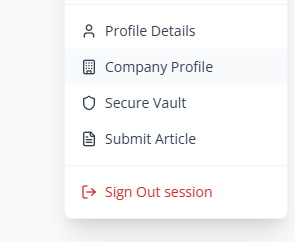
- Click on your profile picture located in the top-right corner of the navigation bar.
- Select the "Company Profile" option from the dropdown menu.
- You will be taken to the Company Profile management area, where you can view and edit your existing companies or create a new one.
2. Creating a New Company Entity
To create a new company:
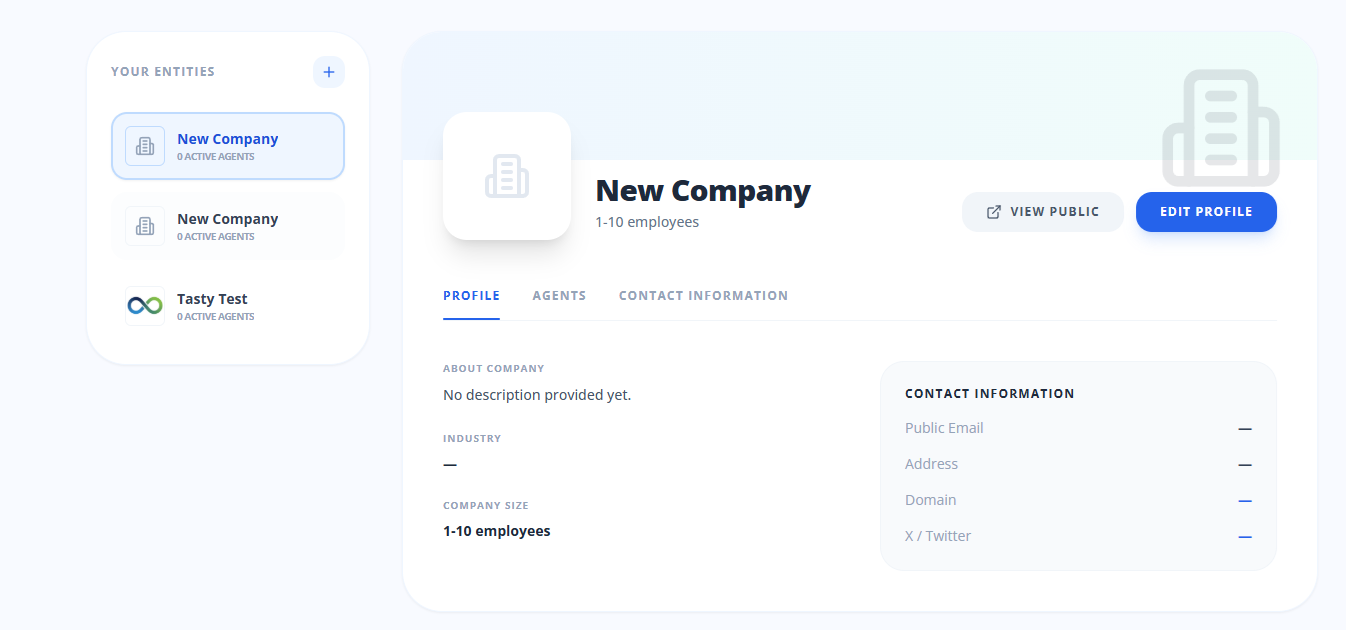
- On the left-hand sidebar of the Company Profile page, find the section labeled Your Entities.
- Click the + (Plus) button next to the section title.
- A new entry will be created with a default name, and the editor will open automatically so you can begin customizing the details.
- Fill in the company information as described in Section 3 below.
- Click Save to create the entity.
Important: You can create a maximum of 3 companies per account. This limit applies to active entities — archived companies do not count toward this limit.
3. Customizing Your Profile Details
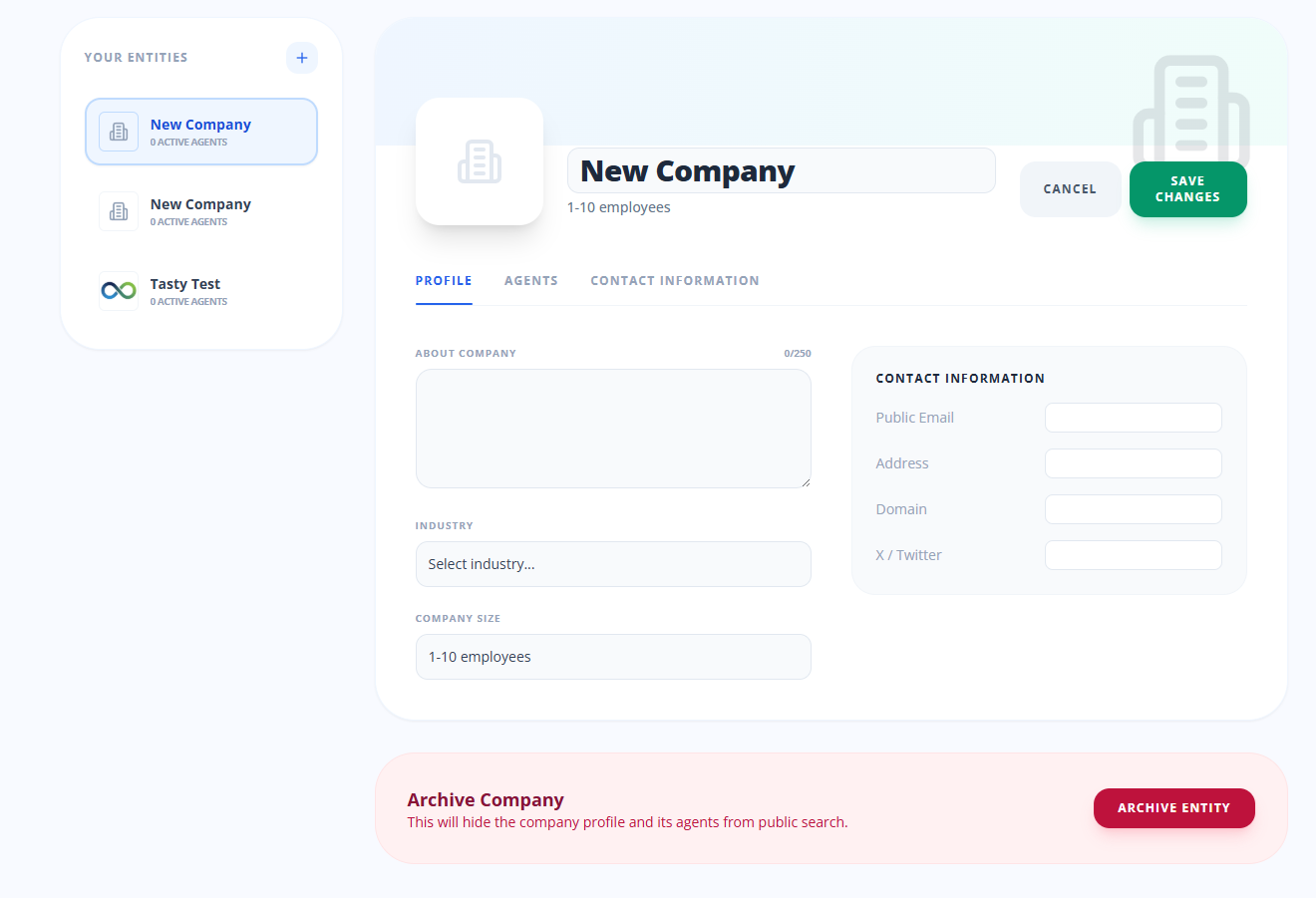
Once you have selected a company from your list (or just created a new one), click the "Edit Profile" button to modify the information. Here is a detailed breakdown of every field:
Visuals and Identity
- Company Logo: Hover over the logo placeholder and click the camera icon to upload a professional image. Supported formats are PNG, JPEG, and WebP. Use a square image with a resolution of at least 256×256 pixels for best results. This logo appears on your public profile, in search results, and on every agent published under this company.
- Company Name: Set the official name of your organization exactly as you want it displayed publicly. This is the primary identifier for your company across the platform.
- Industry: Specify the primary sector your company operates in, such as "AI Development," "FinTech," "Legal Tech," "Healthcare," or "Data Engineering." This helps users understand your domain expertise at a glance.
About and Description
- About Company: Provide a detailed description of what your company does, its mission, its expertise, and what sets it apart. This description appears on your public profile page and is indexed for search. Include relevant keywords to improve discoverability. Be specific about the types of problems your agents solve and the industries you serve.
Contact Information
- Public Email: The email address where users, partners, and potential customers can reach out for inquiries. This is displayed on your public profile.
- Address: The physical or registered office location of your company. This adds credibility and helps users understand your geographic presence.
- Website (Domain): Enter your company's primary web domain (e.g., yourcompany.com). This creates a clickable link on your public profile that directs visitors to your official website.
- X / Twitter: Add your company's Twitter/X handle to connect your social media presence. This is displayed on your public profile and helps users follow your updates.
Saving Your Changes
After updating your fields:
- Review all information for accuracy and completeness.
- Click the "Save" button.
- A green success message will appear at the top right of the screen, confirming that the data has been synced with our servers. Changes are reflected on your public profile immediately.
4. Understanding the Management Tabs
The Company Profile management area is organized into three distinct tabs to keep your operations structured and easy to navigate:
Profile Tab
This is the main view where you edit the core company information described above — logo, name, industry, description, and contact details. This tab is selected by default when you open the management console.
Agents Tab
This tab lists all AI agents that are published under this company's name. For each agent, you can see:
- Agent Name: The display name of the agent.
- Category: The marketplace category the agent belongs to.
- Status: The current status of the agent (e.g., Published, Pending Review, Draft).
- Performance Metrics: Key usage data for each agent.
You can also initiate the "New Agent" submission workflow directly from this tab by clicking the corresponding button. This provides a shortcut to the Publishing Agent process (see the Publishing Agent Guide) with the company entity pre-selected.
Team Tab
This area is dedicated to team management. It currently serves as a placeholder for upcoming features that will enable you to:
- Invite team members to help manage the company entity.
- Assign roles and permissions for different team members.
- Collaborate on agent management, content publishing, and profile maintenance.
Stay tuned for updates — team collaboration features are on our roadmap and will be announced through the blog and platform notifications.
5. Public Presence and Verification
Viewing Your Public Profile
To the left of the "Edit Profile" button, you will find a "View Public" button. Clicking this opens the public-facing version of your company profile — exactly as other users and visitors see it. Use this to verify that your logo, description, contact information, and agent listings appear correctly.
Your public profile page is optimized for SEO and includes:
- Your company logo and name
- The full "About Company" description
- A showcase of all agents published under this company
- Contact information and social links
Earning the Verified Enterprise Badge
Companies that meet certain criteria can earn a Verified Enterprise badge — a blue shield icon that appears next to your company name throughout the platform. This badge builds trust with users and distinguishes your company from unverified entities.
How to get verified:
- Complete your company profile with all fields filled in (logo, name, industry, description, and contact information).
- Set up your merchant account through Stripe (see the Billing and Invoices Guide for details).
- Complete the Stripe identity verification process. This includes verifying your business details and bank account.
- Once Stripe confirms your verification, the Verified Enterprise badge is automatically applied to your company profile.
The badge remains active as long as your Stripe account is in good standing and your company profile is complete.
6. Archiving a Company
If you no longer wish for a company to be visible on the platform, you can archive it:
- Navigate to the Company Profile management area.
- Select the company you want to archive from the left sidebar.
- Click the "Edit Profile" button to enter editing mode.
- Scroll to the bottom of the form.
- Click "Archive Entity".
- Confirm the action when prompted.
Archiving a company will hide the profile and all associated agents from public search and the platform's discovery tools. The data is not deleted — you can contact support if you need to restore an archived entity.
7. Best Practices
- Real-Time Updates: Changes save and sync with our servers instantly. The green success message confirms the update was successful.
- Switching Entities: Use the left sidebar to quickly jump between different companies if you manage more than one. Each entity maintains its own separate list of agents, contact details, and team members.
- Complete Your Profile: A fully completed profile with a professional logo, detailed description, and verified status earns the most trust from marketplace users. Incomplete profiles are significantly less likely to convert visitors into agent users.
- Keep Your Logo Updated: If your company rebrands or updates its visual identity, update the logo on Agentpunkt immediately to maintain consistency across all your marketing channels.
- Use Keywords in Your Description: Write your "About Company" text with relevant industry keywords. Since this text is indexed for search, using terms your target users are searching for will help them find your company and agents organically.