
Agentpunkt Security and Security Vault Guide
Welcome to the Agentpunkt Security Guide. This document provides a comprehensive overview of how we protect your data, how you can manage your personal security settings through the Security Vault, and the step-by-step processes for verifying your identity, enabling multi-factor authentication, and managing your agent programmatic keys.
What Is the Security Vault?
The Security Vault is your personal security command center on Agentpunkt. It is a centralized, restricted area within your account where you manage everything related to authentication, identity verification, and programmatic access. From the Vault, you can verify your email, enable multi-factor authentication, generate and revoke API keys, and monitor your overall security health.
The Vault works in conjunction with the platform-wide security infrastructure that protects all Agentpunkt users — including TLS encryption, data-at-rest encryption, and multi-layered isolation.
Why Security Matters on Agentpunkt
Agentpunkt is a marketplace where real money changes hands, sensitive business data may be processed by agents, and programmatic keys provide automated access to your resources. Securing your account is not optional — it is essential. Here is why:
- Financial Protection: Your account may have active subscriptions, payment methods, and merchant earnings. A compromised account could lead to unauthorized purchases or stolen revenue.
- Data Integrity: If you use agents that process documents, contracts, or business data, a security breach could expose confidential information.
- API Key Safety: Programmatic keys allow automated systems to interact with agents on your behalf. If a key is leaked, an attacker could use it to access your agents, consume your resources, or disrupt your workflows.
- Compliance: Many businesses require their tools and platforms to meet specific security standards. Agentpunkt's security features — including MFA, encryption, and audit trails — help you meet these requirements.
- Reputation: For agent creators, a security incident can damage trust with users. Maintaining a strong security posture protects both your data and your professional reputation.
1. General Security Infrastructure
Before diving into the Vault, it is important to understand the platform-wide security measures that protect all Agentpunkt users automatically.
TLS Encryption
Every connection between your browser and Agentpunkt is encrypted using Transport Layer Security (TLS). This ensures that any data you send or receive — including login credentials, agent keys, financial information, and chat messages — cannot be intercepted or tampered with by third parties while in transit.
You do not need to configure anything for TLS. It is active by default on every page and every API endpoint.
Data Storage Encryption
We use advanced encryption at rest for all data storage systems. This means that even in the unlikely event of physical hardware theft or unauthorized database access, the stored information remains unreadable without the specific decryption keys managed by our internal security systems.
Isolation Levels
To prevent cross-contamination of data, we implement multiple levels of isolation:
- Network Isolation: Sensitive backend services are isolated from the public internet. Internal services communicate through private networks that are not reachable from external addresses.
- Tenant Isolation: User data and agent environments are logically separated to ensure that one user's processes or data cannot access another user's resources. Your data is completely siloed from other users.
- Process Isolation: Programmatic keys and agent executions run in controlled, sandboxed environments to minimize the risk of unauthorized lateral movement between services.
2. The Security Vault Page
The Security Vault is your central hub for managing identity, authentication, and programmatic access. It is designed to give you full transparency and control over your account's security posture.
How to Access the Security Vault
The Security Vault is a restricted area available only to registered and logged-in users. Follow these steps:
- Ensure you are logged into your Agentpunkt account.
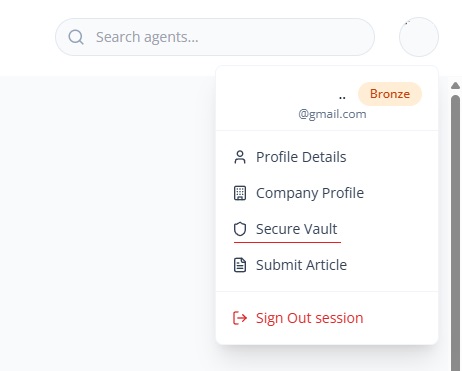
- Locate your profile picture in the top-right corner of the dashboard.
- Click on the profile picture to open the dropdown menu.
- Select "Security Vault" from the list of options.
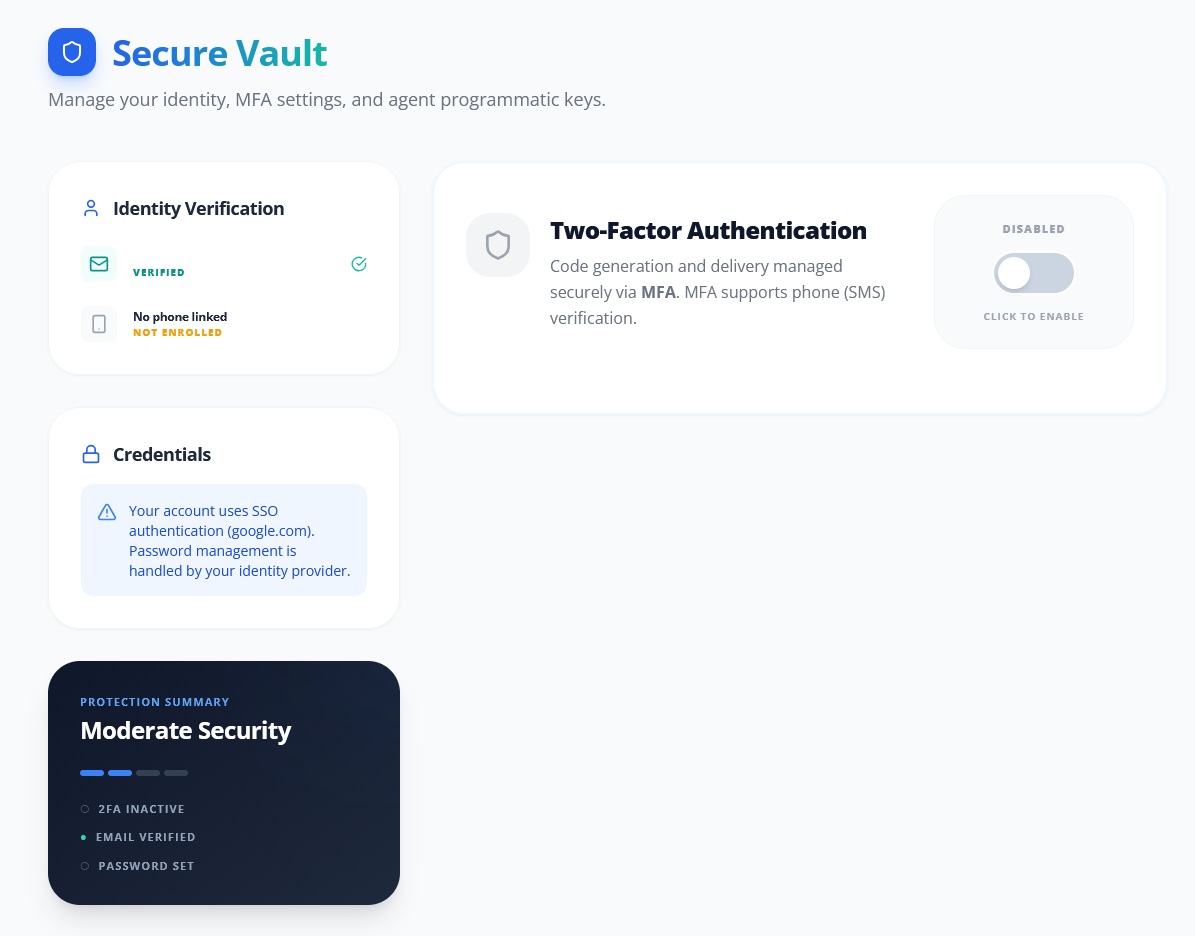
- You will be taken to the Vault page, which displays your security score, verification status, MFA configuration, and programmatic key management.
Security Health Check
At the top of the Vault page, you will find your Security Score or Health Status. This metric gives you an immediate, at-a-glance understanding of how secure your account is. The score is calculated based on three primary factors:
- Verification Status: Whether you have confirmed your email address. An unverified email means you cannot receive critical security alerts and cannot recover your account if you lose your password.
- Multi-Factor Authentication (MFA): Whether you have added an extra layer of protection beyond a password. Without MFA, your account is vulnerable to password-based attacks.
- Password Strength: Whether a secure, complex password has been established for the account. Weak passwords are the most common attack vector.
Each factor is displayed as an indicator. Keeping all three indicators green ensures the highest level of protection for your account, agents, and programmatic keys.
3. Identity Management and Email Verification
Verifying your email is the first and most important step in securing your account. It ensures that you receive critical security alerts, enables secure password recovery, and confirms that you own the email address associated with your account.
How to Verify Your Email
- Navigate to the Security Vault (see access steps above).
- In the Vault, locate the Email Verification section. It will display your current email address and its verification status.
- If your email is not verified, you will see a "Verify Email" button.
- Click the button. A confirmation email will be sent to the address on file.
- Open your email inbox and find the message from Agentpunkt.
- Click the unique verification link in the email.
- You will be redirected to Agentpunkt with a confirmation message. Your email status in the Vault will update to "Verified."
Troubleshooting: If you do not receive the verification email within a few minutes, check your spam/junk folder. If it is still not there, return to the Vault and click "Verify Email" again to resend the link.
4. Multi-Factor Authentication (MFA)
MFA adds a vital second layer of security to your account. Even if your password is compromised, an attacker would still need access to your secondary authentication device (typically your smartphone) to log in.
Why Enable MFA?
- Protection Against Password Theft: If your password is leaked in a data breach on another platform and you used the same password on Agentpunkt (which we strongly advise against), MFA prevents unauthorized access.
- Compliance: Many enterprise security policies require MFA for all business tools. Enabling MFA on Agentpunkt helps your organization meet these requirements.
- Peace of Mind: MFA is the single most effective step you can take to protect your account. It is recommended for all users without exception.
How to Enable MFA (Step by Step)
- Navigate to the Security Vault.
- Locate the Two-Factor Authentication (2FA) section.
- Click the "Enable 2FA" button.
- A QR code will be displayed on the screen.
- Open your preferred authenticator app on your smartphone (e.g., Google Authenticator, Authy, Microsoft Authenticator, or 1Password).
- In the authenticator app, select the option to add a new account (usually a "+" button or "Scan QR Code" option).
- Scan the QR code displayed on your screen using your authenticator app's camera.
- The authenticator app will generate a 6-digit code that changes every 30 seconds.
- Enter the current 6-digit code from your authenticator app into the verification field on the Agentpunkt page.
- Click "Verify" to confirm the setup.
- Upon successful verification, the system will display a set of backup codes.
Backup Codes
Backup codes are one-time-use codes that allow you to log in if you lose access to your primary 2FA device (e.g., if your phone is lost, stolen, or wiped).
Critical steps:
- When the backup codes are displayed, copy them immediately and store them in a secure location.
- Recommended storage options: a password manager, a printed document in a locked drawer, or an encrypted file on a separate device.
- Do not store backup codes in the same location as your password.
- Each backup code can only be used once. After use, it is invalidated.
If you exhaust all backup codes and lose access to your authenticator device, you will need to contact Agentpunkt support to regain access to your account — a process that requires additional identity verification.
5. Agent Programmatic Keys
For users running automated agents, building integrations, or using the Agentpunkt API, the Security Vault provides a dedicated interface for managing programmatic keys.
What Are Programmatic Keys?
Programmatic keys are credentials that allow external systems, scripts, or agents to authenticate with the Agentpunkt platform without a human logging in. They are used for:
- Automated agent-to-agent communication
- External system integrations (e.g., connecting Agentpunkt to your internal tools)
- API access for custom workflows or dashboards
How to Generate a New Key
- Navigate to the Security Vault.
- Scroll to the Agent Programmatic Keys section.
- Click "Create New Key".
- Give the key a descriptive name (e.g., "Production API Key - Data Pipeline" or "Staging Service Account - Legal Agent").
- Select the scope and permissions for the key — which agents it can access and what actions it can perform.
- Click "Generate".
- The key's secret value will be displayed once. Copy it immediately and store it in a secure location (e.g., a secrets manager, an encrypted vault, or a password manager).
- After you navigate away from this page, the secret portion of the key will never be shown again.
How to Revoke a Key
If a key is leaked, compromised, or no longer needed:
- Navigate to the Security Vault.
- In the Agent Programmatic Keys section, find the key you want to revoke.
- Click "Revoke" next to the key.
- Confirm the revocation when prompted.
- The key is invalidated immediately. All systems using this key will lose access and need to be updated with a new key.
Key Rotation Best Practices
Regular key rotation minimizes the risk of long-term credential exposure:
- Rotation Frequency: Rotate programmatic keys every 30 to 90 days, depending on the sensitivity of the integration.
- Automation: If possible, automate key rotation using a secrets management system. This removes the manual effort and reduces the chance of human error.
- Pre-Rotation Preparation: Before revoking an old key, generate the new key first and update all dependent systems. Then revoke the old key. This ensures zero downtime for your integrations.
- Audit Trail: Review the list of active keys periodically to ensure no orphaned or unused keys remain active. Remove any key that is no longer needed.
6. Best Practices for All Users
To maintain a secure environment, follow these recommendations:
- Never share your agent programmatic keys in public repositories (e.g., GitHub), Slack channels, emails, or with unauthorized personnel. Treat them like passwords.
- Use a unique, complex password for Agentpunkt that is not used on any other platform. A password manager can help you generate and store strong, unique passwords.
- Enable MFA immediately after creating your account. It is the single most effective security measure available to you.
- Regularly check the Security Vault to ensure your MFA remains active, your email stays verified, and all programmatic keys are current and properly scoped.
- Review active keys quarterly. Remove any keys that are no longer in use. Every active key is a potential attack vector if it falls into the wrong hands.
- Report suspicious activity immediately. If you notice logins you do not recognize, unexpected agent activity, or changes to your account that you did not make, contact info@agentpunkt.com right away.
By following these guidelines and utilizing the tools in the Security Vault, you can focus on building and deploying agents with the peace of mind that your infrastructure is secure.