
Agentpunkt User Guide: About Me (Profile Details)
This guide provides a complete, step-by-step walkthrough of the About Me section within Agentpunkt. You will learn what the profile page is, why it matters for your presence on the platform, how to access it, what every field means, and how to keep your profile optimized for maximum professional impact.
What Is the About Me Page?
The About Me page is your personal professional hub on Agentpunkt. It is the central place where you manage your identity, view your membership tier, and update the contact information and professional details that are visible to other users and partners on the platform. Think of it as your digital business card within the Agentpunkt ecosystem.
Why Your Profile Matters
Your profile is more than just a form — it directly affects how you are perceived on the platform:
- Trust and Credibility: A complete profile with a professional photo, verified email, and detailed bio signals to other users, partners, and potential clients that you are a serious participant in the ecosystem.
- Networking and Discovery: Other users can view your public profile. A well-crafted bio and up-to-date job title help you connect with the right people — whether you are looking for partnerships, clients, or collaborators.
- Tier Visibility: Your profile displays your current membership tier (Bronze, Silver, or Gold), which communicates your level of engagement and success on the platform.
- Account Requirements: Certain platform features and actions require a complete profile. If your required fields (Email, Full Name, Job Title) are not filled in, you may be unable to save changes or access certain sections.
- Professional Presence: If you publish agents or participate in the Partnership Program, your profile is part of your public-facing brand. A polished profile improves the perception of your agents and your referral credibility.
1. Accessing the About Me Page
The About Me section is a private area of the platform accessible only to registered and logged-in users. Follow these steps to navigate to it:
- Log In: Ensure you are logged in to your Agentpunkt account.
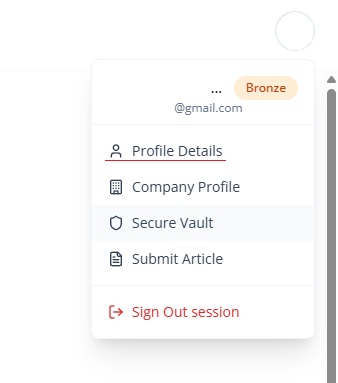
- Find Your Profile Icon: Look at the top-right corner of the screen. You will see your profile picture or a default avatar icon.
- Open the Dropdown Menu: Click on your profile picture to open the account menu.
- Select Profile Details: From the list of options in the dropdown, click on "Profile Details". This will take you directly to your personal profile overview.
2. Viewing Your Profile (My Profile)
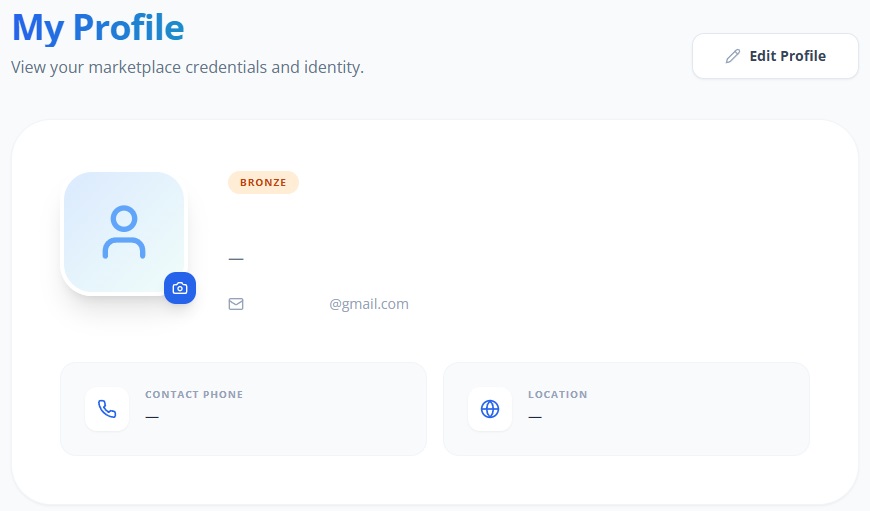
Once you enter the Profile Details area, you will see the My Profile overview. This screen displays a summary of your current standing and professional data at a glance:
Membership Tier
Your current tier is displayed prominently — either Bronze, Silver, or Gold. This tier reflects your engagement level on the platform, particularly through the Partnership Program. If you want to understand how tiers work, how to advance, and what perks each tier unlocks, refer to the Partnership Guide.
Profile Icon
Your current profile photo is displayed here. This is the image that appears next to your name across the platform — in comments, agent listings, partnership pages, and public profiles. You can change this icon directly from this view:
- Hover over your current profile photo.
- Click the camera icon or the upload prompt that appears.
- Select a file from your computer (PNG, JPG, or WebP format).
- The image uploads and updates immediately.
Identity and Role
Your full name and current job title are prominently featured in the profile overview. These fields are visible to other users and are used across the platform to identify you.
Contact and Location
This section lists your registered email address, contact phone number, and geographic location (city and country). This information helps partners and collaborators understand where you are based and how to reach you.
3. Editing Your Profile
To make changes to your information, follow these steps:
- Navigate to your Profile Details page (as described in Section 1).
- Locate and click the "Edit Profile" button situated above your profile information.
- The editing interface will open, displaying all editable fields.
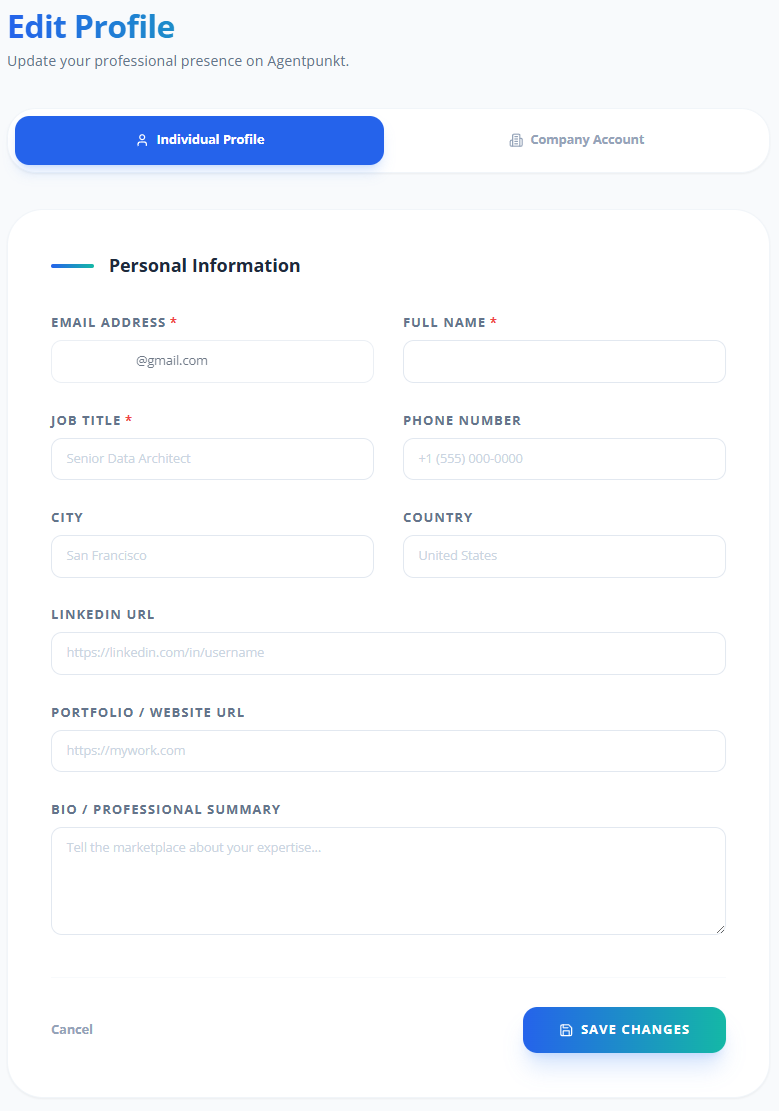
Account Type Tabs
At the top of the edit screen, you will see two distinct tabs:
- Individual Account: This is the default tab for managing your personal professional details. All of the fields described below are part of this tab.
- Company Account: Clicking this tab will redirect you to the Company Profile page, which is managed separately. For full details on setting up and managing your company profile, refer to the Company Profile Setup Guide.
Individual Account Fields
When the Individual Account tab is selected, you can fill out or update the following fields. Fields marked with an asterisk (*) are required — your profile cannot be saved without them.
- Email Address:* Your primary contact and login email. This is the address used for all platform notifications, security alerts, and password recovery.
- Full Name:* Your legal or professional name as you want it displayed across the platform.
- Job Title:* Your current position or professional role (e.g., "Head of Legal," "AI Engineer," "CEO"). This appears in your public profile and helps others understand your expertise.
- Phone Number: Your preferred contact number. This field is optional but recommended for users who want to be reachable by partners or collaborators.
- City: The city where you are currently based. This helps with geographic networking and can be relevant for regional partnership opportunities.
- Country: Your country of residence. Combined with City, this provides a complete location context.
- LinkedIn URL: A direct link to your professional LinkedIn profile. This is displayed on your public profile and allows others to connect with you outside of Agentpunkt.
- Portfolio / Website URL: A link to your personal website, portfolio, or digital resume. Use this to showcase your work, published agents, or professional achievements.
- Bio / Professional Summary: A brief description of your background, expertise, and what you bring to the Agentpunkt community. This is one of the most important fields for your public presence — write it carefully and keep it updated.
Saving Your Changes
After updating your fields:
- Review all entries to ensure accuracy.
- Click the "Save" button at the bottom of the form.
- A green success message will appear at the top right of the screen, confirming that your data has been synced with our servers.
If you attempt to save without filling in the required fields (Email, Full Name, and Job Title), the system will highlight the missing fields and prompt you to complete them before proceeding.
4. Best Practices for Profile Management
- Keep Data Current: Update your Job Title and Bio whenever your role or expertise changes. An outdated profile signals disengagement and can reduce trust.
- Professional Imagery: Use a clear, professional headshot for your profile icon. Avoid logos, cartoons, or low-resolution images. A real photo builds trust and makes you recognizable across the platform.
- Complete Every Field: Even optional fields like Phone Number, LinkedIn URL, and Portfolio URL contribute to a stronger profile. The more complete your profile, the more professional and trustworthy you appear.
- Write a Compelling Bio: Your Bio is often the first thing other users read about you. Be specific about your expertise, your role, and what you are looking for on the platform. Avoid generic statements — tell people what makes you unique.
- Review Periodically: Set a reminder to review your profile every few months. Ensure your links still work, your location is accurate, and your bio reflects your current professional focus.
If you have questions regarding the Company Profile or the Tier System, please consult the Company Profile Setup Guide and the Partnership Guide respectively.